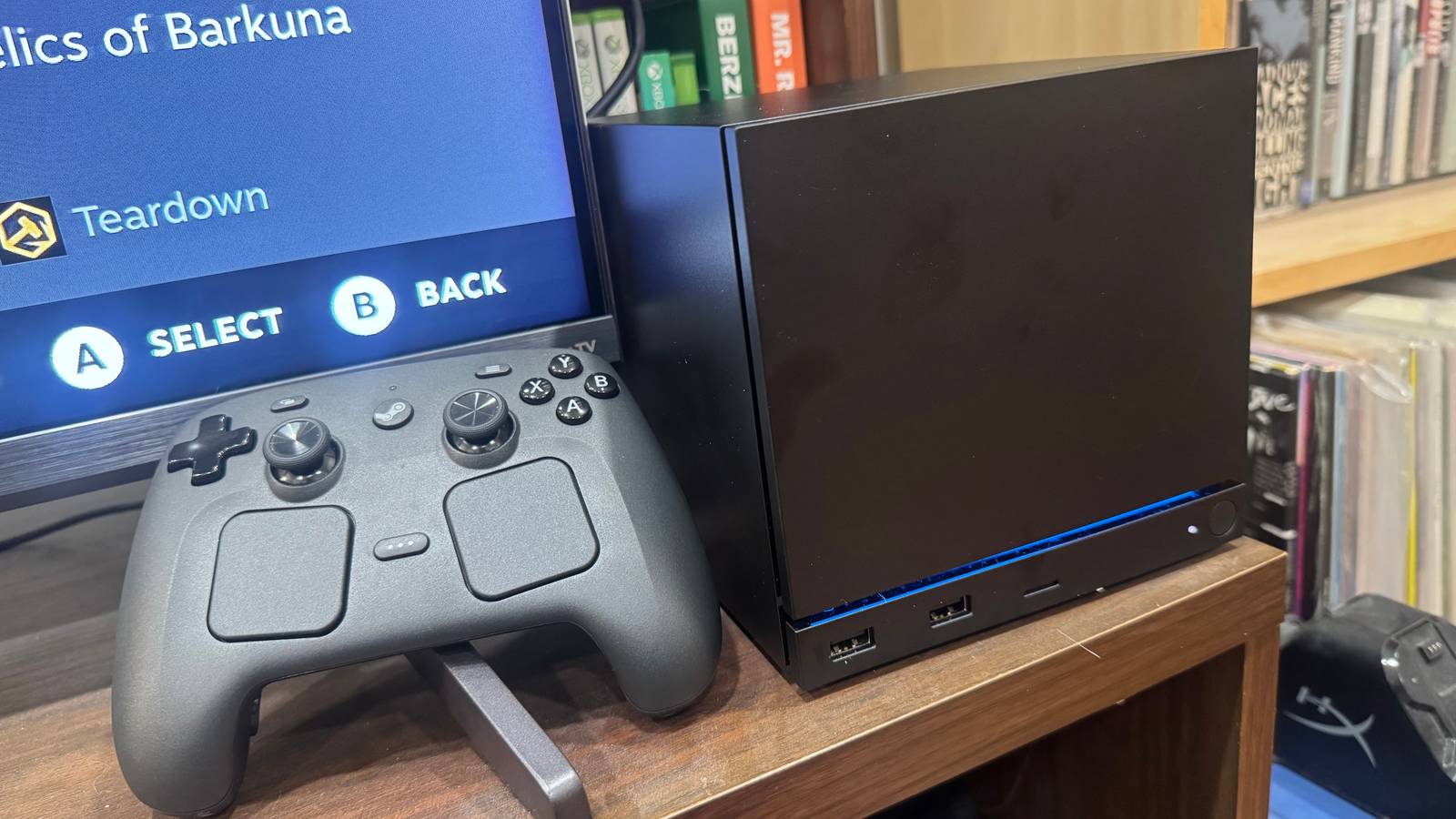
Valve is taking a big leap into gaming hardware with the Steam Machine. The mini PC is the closest thing we’ll probably ever get to a proper Valve video game console. It’s a plug-and-play gaming computer that’s about as easy to use as a PlayStation 5, though a little less powerful. It’s also significantly more expensive than a PS5 by hundreds of dollars, which might leave you wondering why you’d actually want to buy a Steam Machine.
As similar as the PS5 and Steam Machine might sound, they’re fundamentally different gaming devices, depending on how you use them. A PS5 is the smarter investment if you’re just trying to run games reliably well, but the Steam Machine offers a lot of extra utility. Here are just a few of the things you can do with a Steam Machine that you can’t with a PS5 — whether those are meaningful enough to justify the hefty price tag is your call.
1
You can use it like a PC, web browser and all
The most important thing to know about the Steam Machine is that it’s a PC, not a console. While SteamOS makes it look like the latter, the whole thing is actually powered by Linux. By enabling desktop mode, you can pop straight over to the operating system and use it like you would any other computer. You can visit websites via your browser of choice, download apps, send emails, and so on. If you want to go all-in on that, you can even plug in a keyboard and mouse to create a proper PC setup. I’ve used that setup a lot already, and it works with no quirks.
There are limits to that utility, though. The Steam Machine isn’t a superpowered PC built for editing video or producing music. It’s not going to replace your home computer by any means, unless the only thing you really use it for is to write emails and watch YouTube. (Even getting Netflix to work in a browser out of the box took me some fiddling.) Rather, Linux offers you extra space to tinker with the gaming side of the machine — something you’ll see reflected in the next few points on this list.
2
You can mod games (if you’re patient enough)
When I put out a call for questions about the Steam Machine to our readers this week, the first response was about modding. Can you mod games on the Steam Machine? The simple answer is yes, and that’s where Linux earns its keep. Since you can use it like a normal PC, you can access popular sites like NexusMods and download mods directly to the Linux desktop. You’ll have to go through some hoops to get those working in SteamOS, but there’s plenty of documentation and walkthroughs out there considering that the Steam Deck, which can also boot Linux, has been out for years.
That doesn’t mean that it’s an easy task. Modding can be complicated, and it’s especially confusing if you’re not used to Linux. My girlfriend is a veteran Elder Scrolls modder on Windows, and she spent hours trying to get Skyrim modded on the Steam Machine before giving up. She did, however, get Morrowind modded with ease, despite the fact that no documentation exists yet to get it working on Steam Machine specifically. If you want to get into modding for the first time through Steam Machine, set your sights on well-documented games to save yourself a headache.

3
You can turn it into an emulation dream machine
Anyone who swears by alternative gaming devices will tell you that they’re perfect for retro enthusiasts. I still use my 2023 Razer Edge as a compact handheld emulation machine from time to time. The Steam Machine especially has some major potential for those looking to consolidate their library of games in one place, though. It’s a PC, so in theory it’s easy to install your emulator of choice on it and digitally archive your game collection on your Steam Machine.
In practice, though, that’s not exactly easy here either. It’s the same story as modding: If you’ve never dipped into the world of emulation, it can be very daunting to look through dense documentation and Reddit threads just to troubleshoot a weird quirk. It’s even more complicated if you’re entirely new to Linux. What’s nice about the Steam Machine, at least, is that it’s very easy to connect a keyboard and mouse to it. That makes the setup process go much faster than it would if you were using a controller, or installing everything on a PC and moving it over to your machine via an SD card. I’m still tinkering around to get everything to play nice with SteamOS (and especially with the Steam Controller), but you can again find years of documentation detailing how to get various emulators working on Steam Deck, and those tips are largely applicable to Steam Machine as well, based on my testing so far.
4
You can play early access games and PC exclusives
The most appealing part about any device that runs SteamOS is that you get access to, well, Steam. The PC gaming storefront comes with plenty of perks, from its frequent sales to its handy social features. But what really makes Steam a killer app when it comes to handhelds and consoles is that it has a lot of built-in “exclusives,” thanks to early access games. Many games that opt for early access releases tend to stick to PC rather than cross-launching on traditional consoles. If you want to play Slay the Spire 2 right now, for instance, you can only do so on a computer; it likely won’t be coming to your PS5 or Xbox Series X until its official 1.0 release, as was also the case with Hades 2. It is, however, available to play via the Steam Machine.
Early access games aren’t the only semi-exclusives you get with a SteamOS device. Plenty of games tend to either only launch on PC, or on PC way before getting ported to other consoles. Meccha Chameleon, Steam’s mega-hit multiplayer hide-and-seek game, is a perfect example of that. It’s only available on PC at the moment, and Steam Machine by extension. (And as an added bonus, you don’t need to pay an online subscription fee to play it — another advantage Steam Machine has over the PS5.) Little examples like that add up over time, giving you access to a wider variety of games than you can get on any traditional console.

5
You can customize your startup animation and more
This is by no means a system-seller, but it is a fun perk: You can change the Steam Machine’s startup animation. Under the Customization tab in the settings menu, you can access a library of custom boot-up animations, many of which are themed around PC games. I currently have a theme based on the game Wingspan set up on mine, so my console wakes up to the sights and sounds of birds chirping around the Steam logo. Cute!
That’s not the only bit of customization power you get with the Steam Machine. The Customization tab also features a section dedicated to the LED light on the bottom of the device. You can change its color, pattern, brightness, and more. I have a slow-moving rainbow color rotation on mine currently. The PS5’s removable faceplates have the Steam Machine beat in terms of exterior customization, but you still have some options there. The Steam Machine’s front faceplate can be easily removed and replaced with one that has a bit more personality. I’ve gotten to toy around with a faux wood faceplate and a soft red one, both of which magnetically attach to the console with ease. I’m a sucker for a gaming device with a light toy factor. It’s also a bit easier to show it off, since it fits more naturally into an entertainment center. My PS5 Pro is currently crammed into a shelf where it lies horizontally; my Steam Machine is neatly snuggled under my TV, and it’s a cuter statement piece.
Do any of these extras make up for the fact that the Steam Machine’s price starts at $1,049? Not really! It’s a pricey proposition given that it’s on par with the PS5 in terms of raw power, at best. It’s just a matter of how much you actually plan to take advantage of these features. Modding and emulation are potentially major value propositions, if you actually want to go down that route. But it’s easy to get excited about the prospect of both and then not really do much with them. (Trust me, I speak from experience.) Before you make any impulse-buying decisions, sit down and try to determine what niche features you would actually use long-term.